
We Have This Data Below >
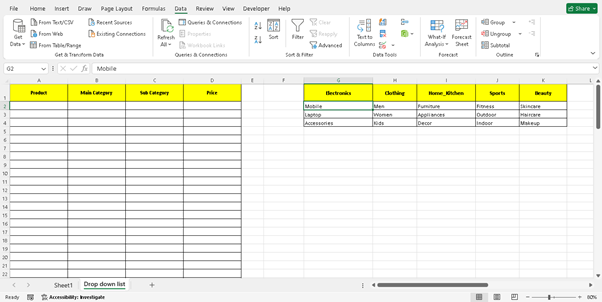
First Of All >
Select The Range Of Data.
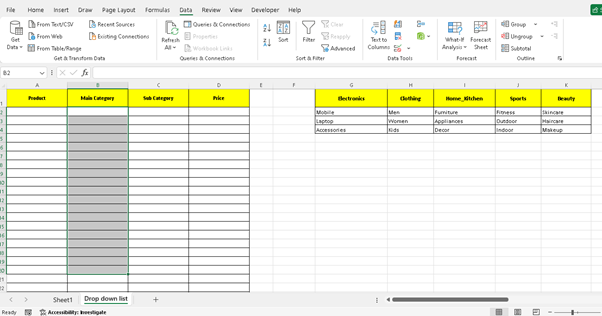
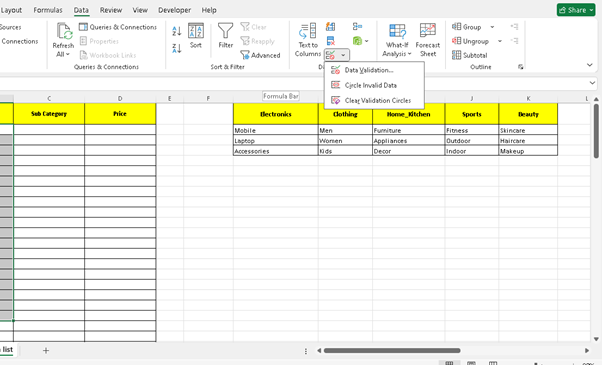
And Go To Data And Then Click On Data Validation.
Select List Option.
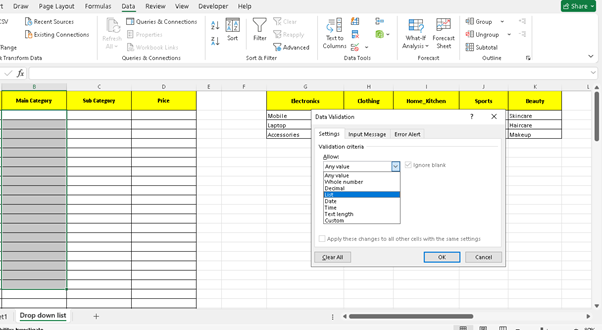
And Put Formula For Main Category.
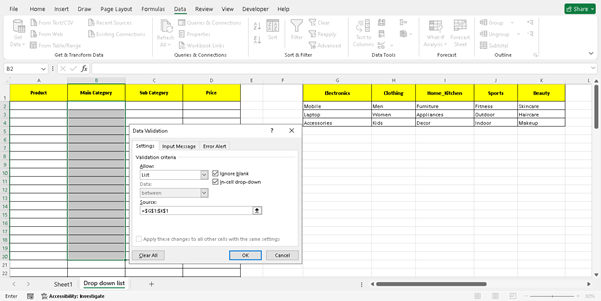
Tips : Select The Main Category Ranges Like (Electronics to Beauty)
And The Ok
“I want each main category to automatically show its own subcategories next to it.”
Select the “Electronics” range fromg1 to g15
And Then Named All The cells Electronics
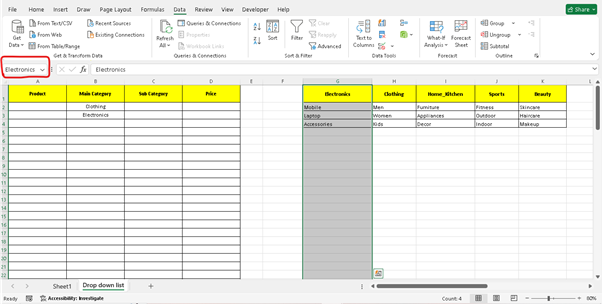
This Procedure Follow For All Main Categories
Select The Range Of Sub Category .
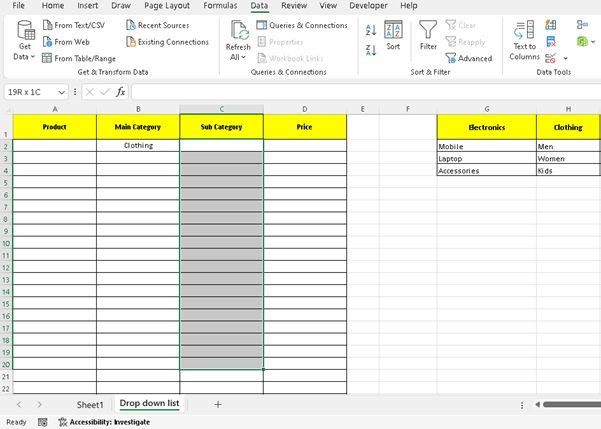
And Goto Data And Then Data Validation
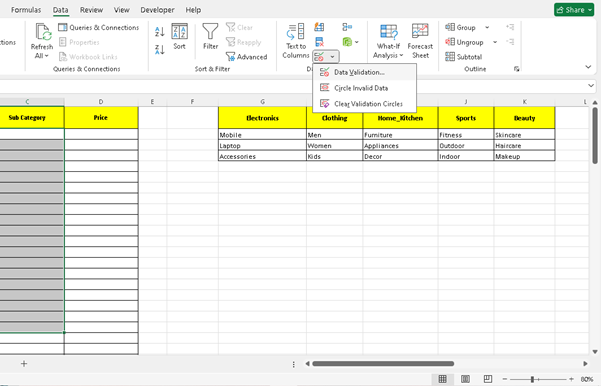
And Then List Like First Procedure
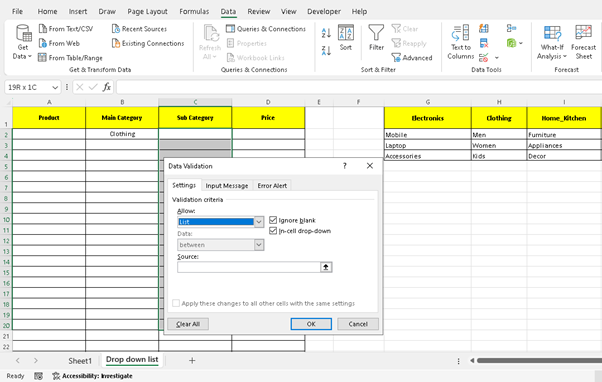
And Put This Formula
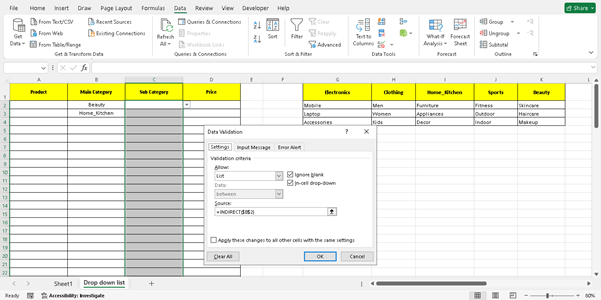
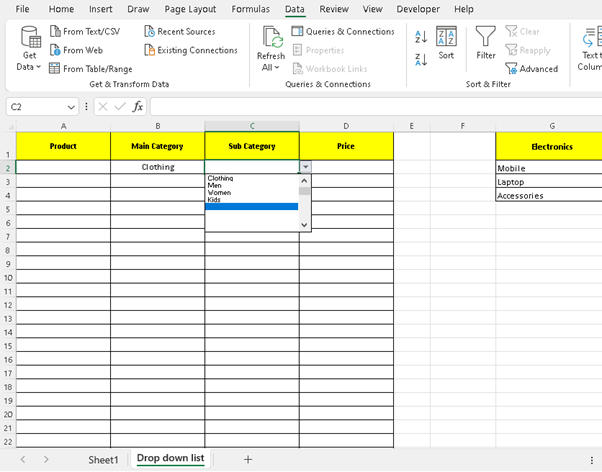
“And that’s it — when you select a main category from the dropdown, only its related subcategories will appear next to it.”
Thank You