
Unpivot Like a Pro: How to Reshape Wide Data into Long Format in Power Query
What is Power Query?
Power Query is a built-in tool in Excel (and Power BI) designed for data cleaning, transformation, and automation. It eliminates the need for complex formulas by letting you shape your data visually. Every transformation you make is recorded, so you can refresh it anytime without repeating the steps.
So Let’s Start
We Have This Data Set In Excel File
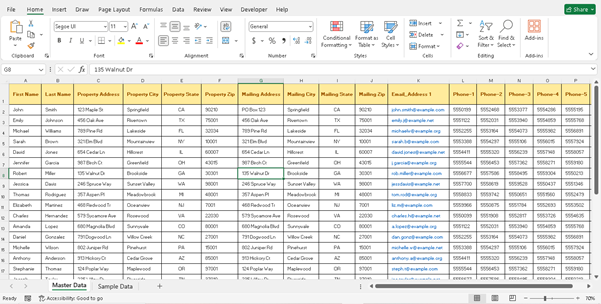
What Does “Unpivot” Mean?
In data terms, “unpivot” means converting wide-format data (many columns) into long-format data (fewer columns, more rows).
Let’s see an example.
Before Unpivot (Wide Format)

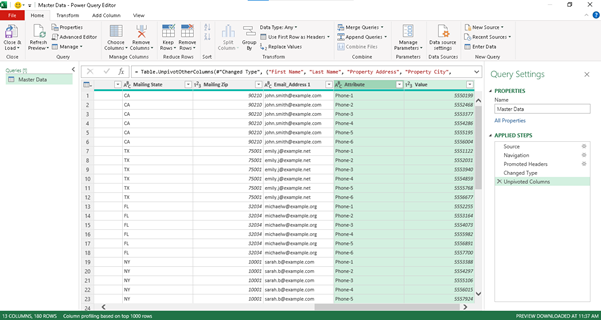
After Unpivot (Long Format)
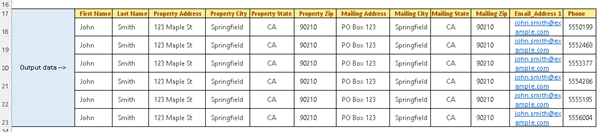
Why Unpivot?
- Better Analysis – Long format works perfectly with Pivot Tables, charts, and Power BI visuals.
- Consistency – Easier to apply formulas or calculations to one column instead of many.
- Automation – Once set up in Power Query, your transformations apply instantly to future datasets.
How to Unpivot Columns in Power Query (Step-by-Step)
Step 1: Load Data into Power Query
- Open Excel and select your data.
- Go to the Data tab → Get & Transform Data → From Table/Range.
- Confirm your table range and click OK.
Go To Data Tab
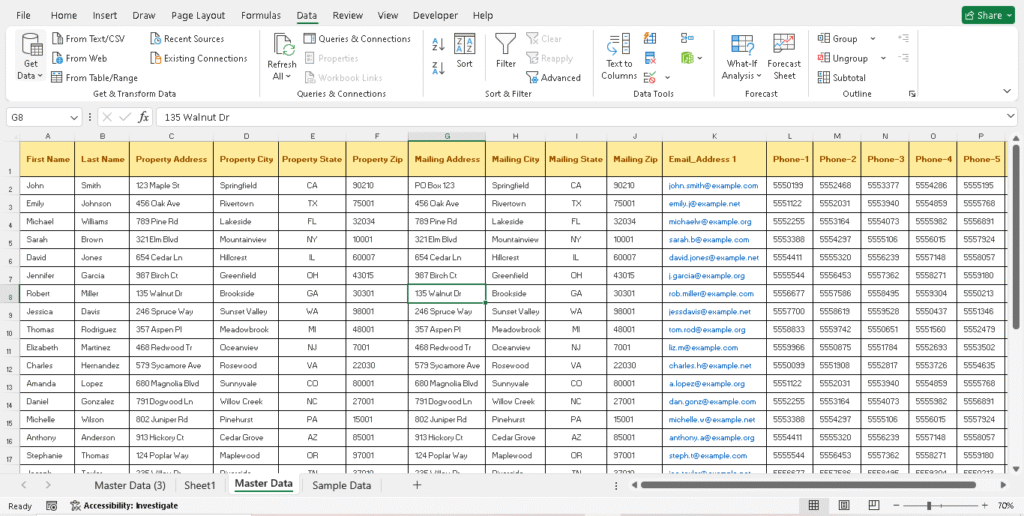
Click On Launch Power Query Editor
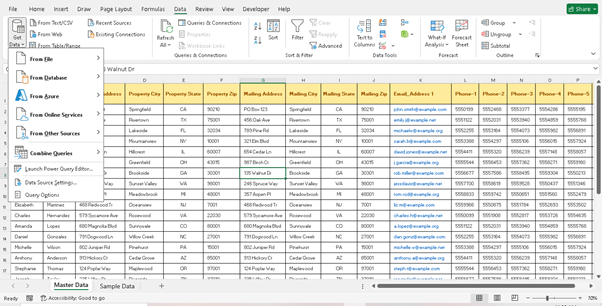
This Type Of Interface Has Open
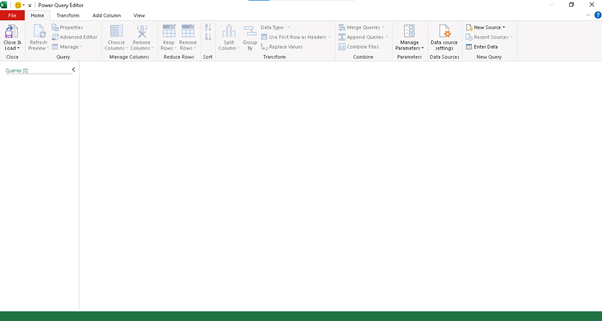
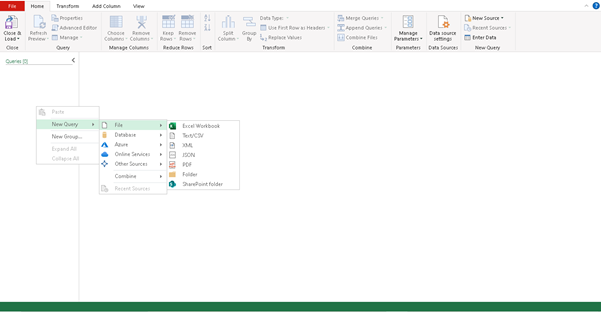
Right Click On The Left Side Editor
And Choose New Query and File And Then Excel Workbook
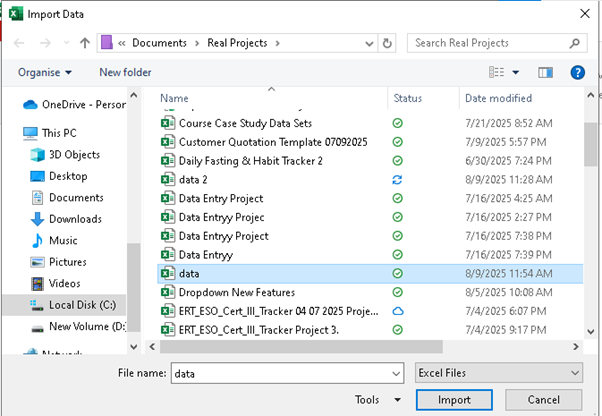
Choose Your File
And Then Choose Your Sheet Which Is For Work
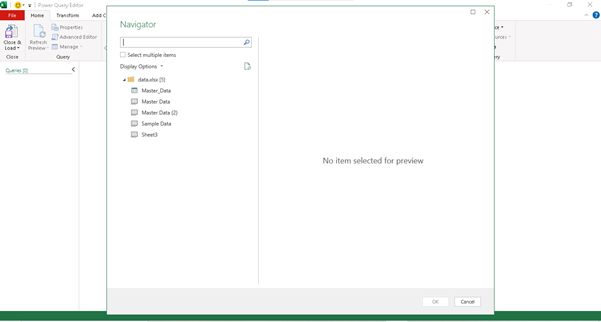
And Click Ok
Choose Columns To Keep
- In the Power Query Editor, select the columns you do NOT want to unpivot (e.g., “Product”).
- Right-click and choose Unpivot Other Columns.
OR - Select only the columns you want to unpivot and choose Unpivot Columns from the Transform tab.
I want To Unpivot (Phone-1 to Phone-6)
Select The First column you Want To unpivot And Click (Shift+Right Arrow)
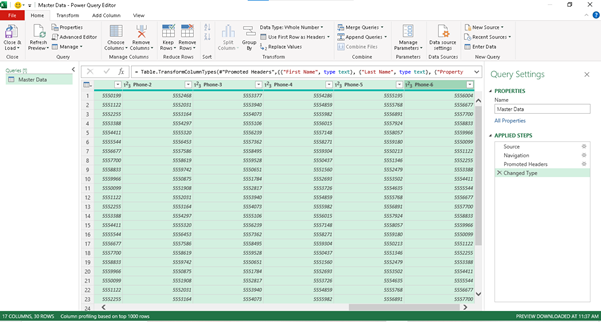
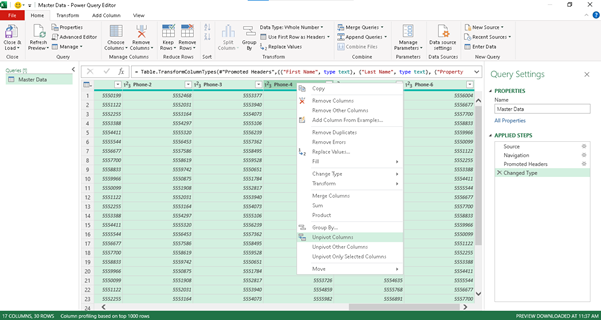
And Then right Click On Top Of Any Columns And Select
Unpivot Columns >
And That’s it Your Work has done
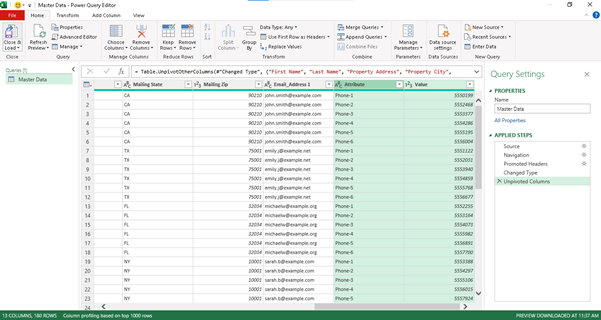
Final Steps >
Click on top Right Option Close & Load data
And important Step
Copy Your Final Data And paste In Values In New Sheet
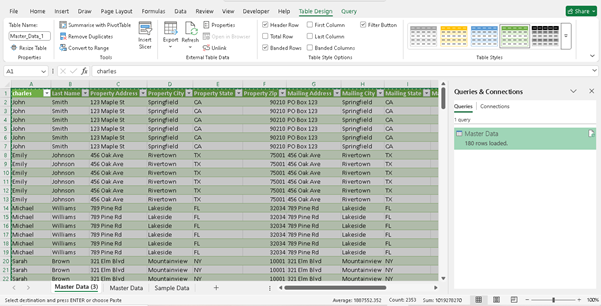
And Create New Sheet
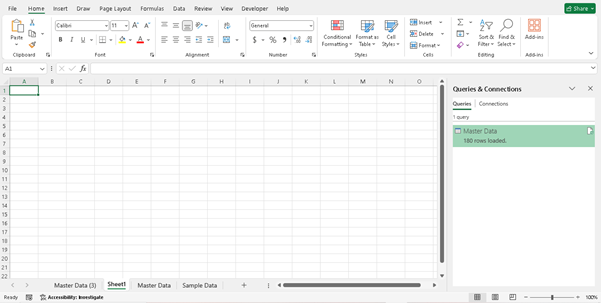
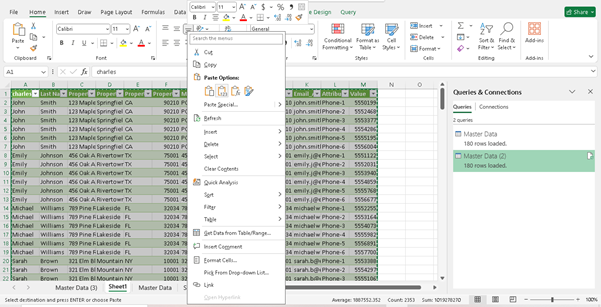
And Then Again Ctrl+c To Copy The Data
And Then Right Click And Click On paste As Values
And Then Go to Query Sheet
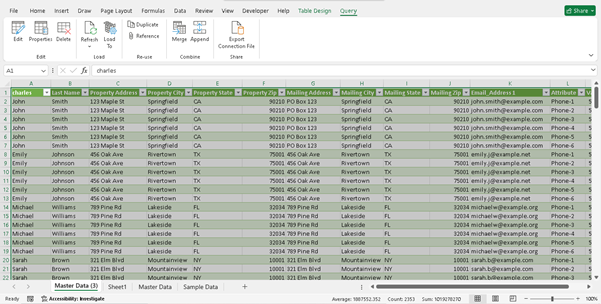
And Click On Query
And Then Click on top Left Corner ( Edit )
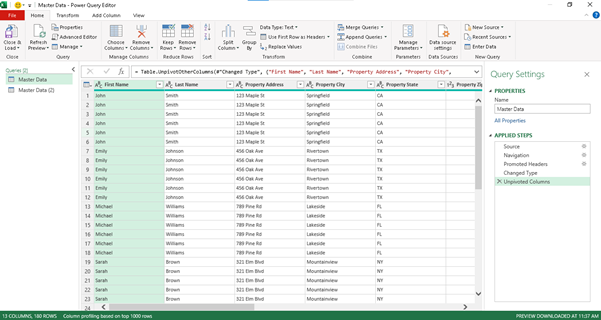
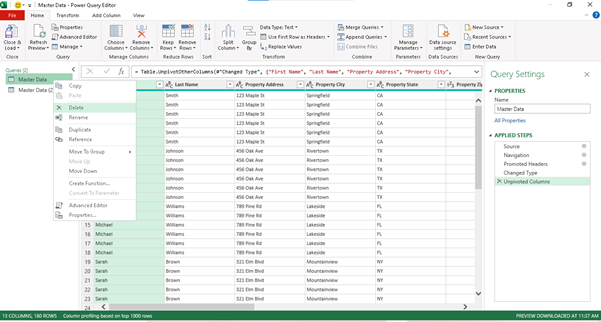
Right Click On Master data And Master Data 2
And Delete
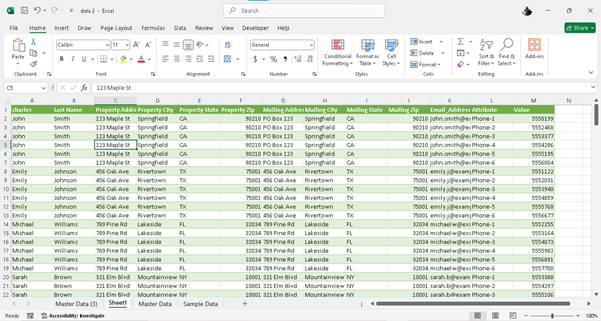
And That’s It Your Data Query Work has Done
Thank You