
Today we are creating a navigation Menu In excel to make our sheet professional
so let start
First you setup your data in your tabs
I have four sheets named
- Employee Directory
- Sales
- Project Tracker
- Department Budget
Insert an shape
in the left side area and apply formatting according to your choice I apply blue and green gradient

Insert textbox and fill = transparent
Copy that textbox and paste the textboxes according to your number of tabs
I have four so I am pasting four time. And rename it like your tabs Name and add some icon for better look
as shown in image
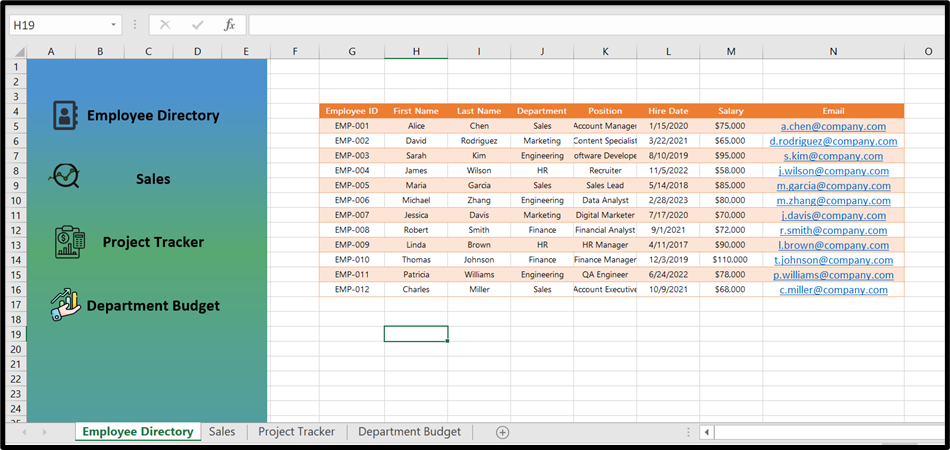
Now add line in side of our main shape and in back of textbox to make it ready for next step and premium look as shown in image.
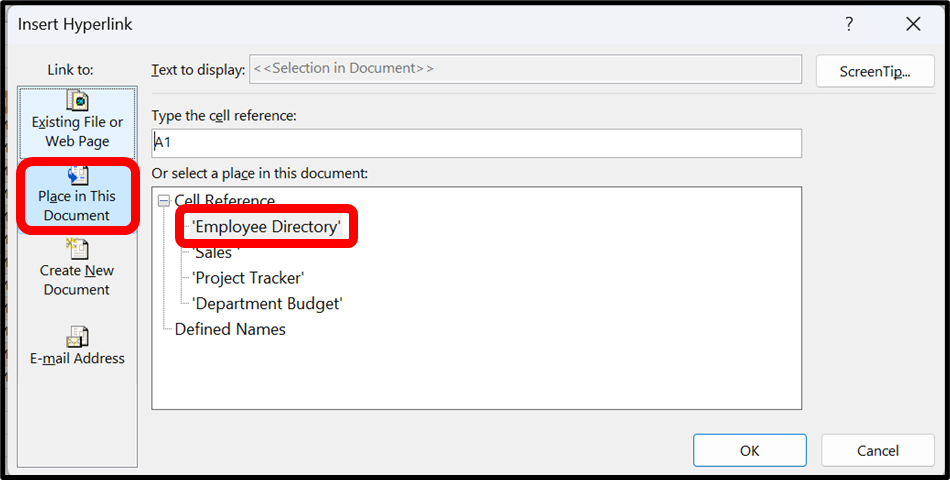
Now click on Employee Directory textbox and press ctrl + K to hyperlink it
a new window will pop up like:
in this click on place in This Document
And Click Emplyee Directory
and click Ok
Now do same to same for all other textboxes.
Now select the range in which the all design of navigation menu is.
Copy and paste it in the same position in all tabs like current.
It will look like below:
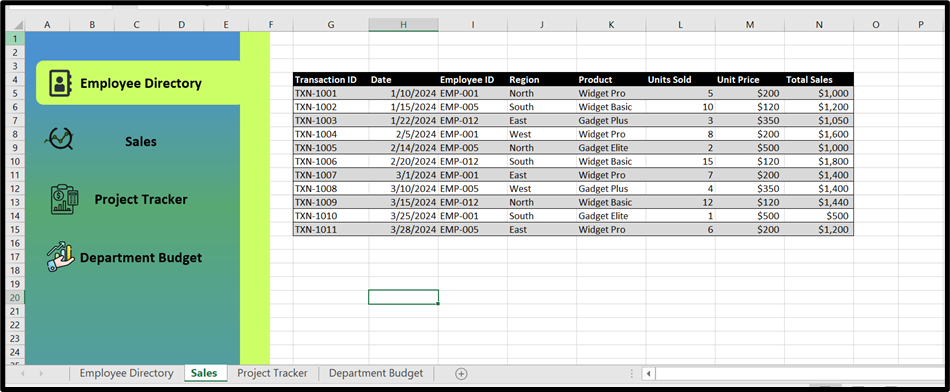
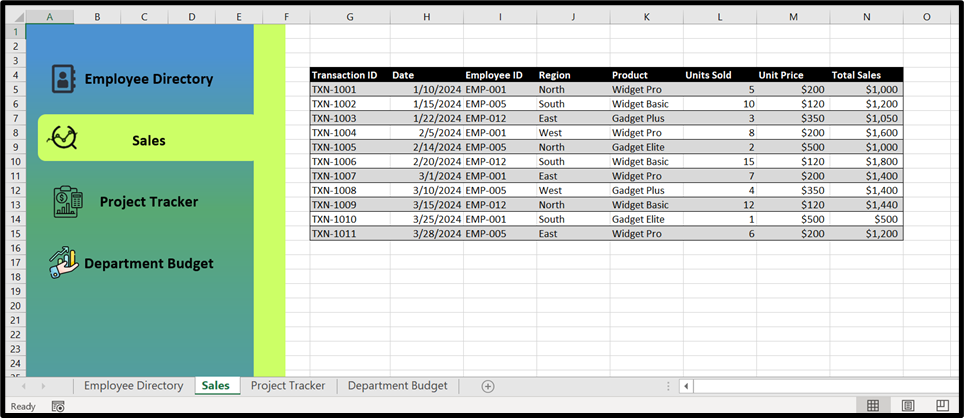
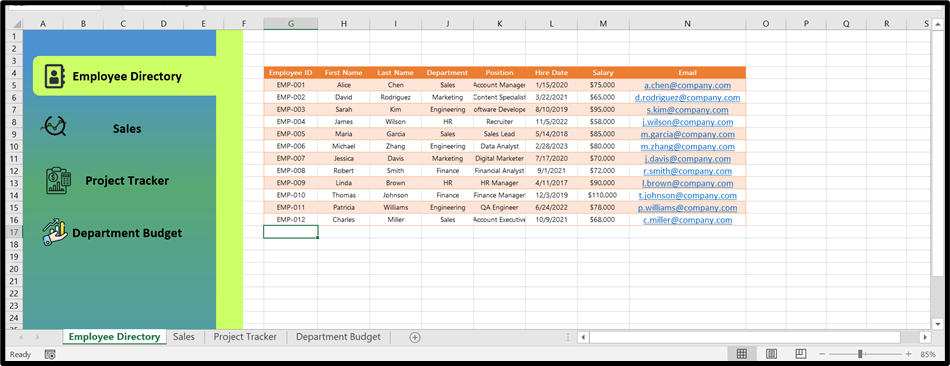
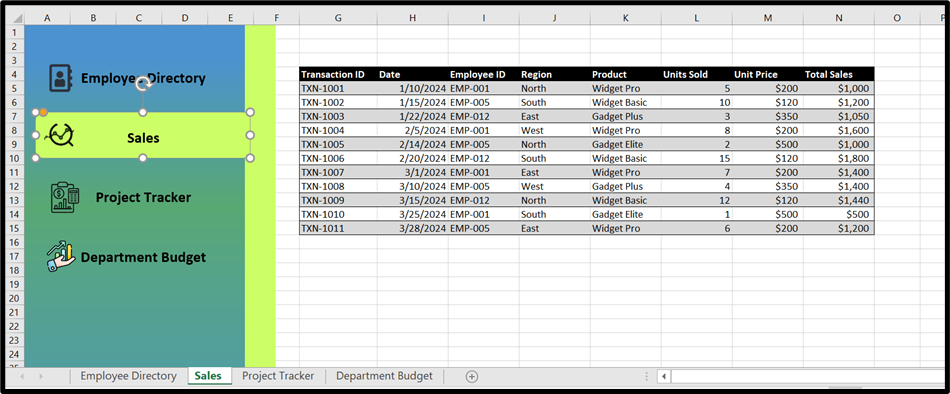
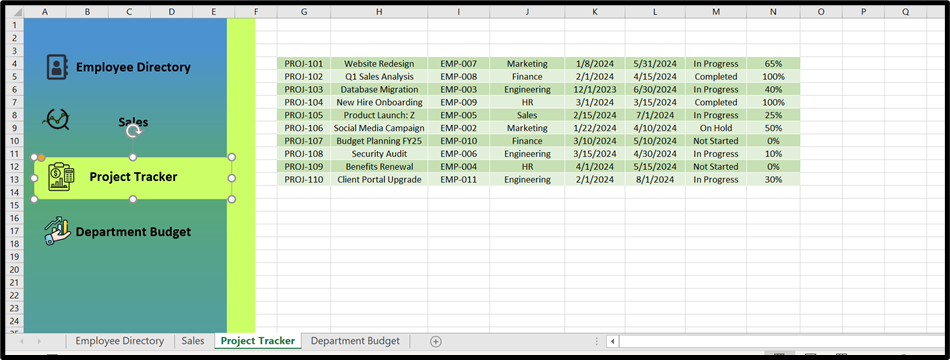
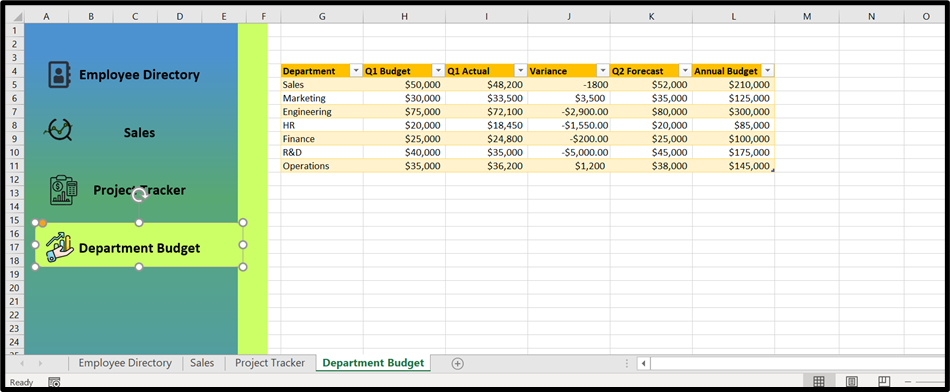
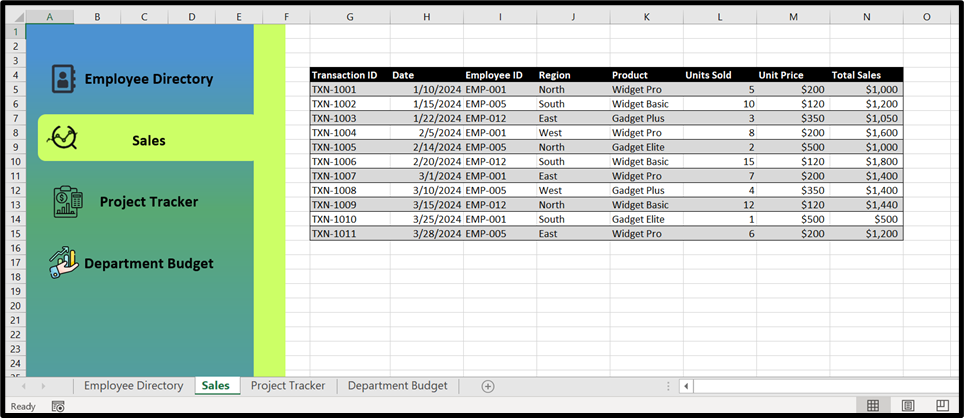
Now go to every tab and drag the shape to that tab name textbox
Below is for sale Tab:
Project Tracker Tab:
Department Budget Tab:
OK Now your automated and Premium Navigation tab is ready
once you click on any tab you will be their with best experience:
Hope you liked it! Thanks for reading till the end. We’ll meet again in the next exciting topic.
For premium Excel services at affordable prices with guaranteed quality, visit our website:
www.irfanai.com